


 Contact Us
 Appliances
 Agri Inputs
 Auto Components & Accessories
 Beauty & Personal Care
 Electronics
 Fashion
 Grocery
 Gift Cards
 Home & kitchen
 Health & Wellness
 Vehicles & Automotives
 Books & Stationary
 Pet Care
 Toys & Games
Reports
The Reports section allows you to view and download different types of reports. It also provides detailed logs and filtering options by date range.

Viewing Available Reports
- Go to the Reports section from your Seller Dashboard.
- The left panel lists all available reports such as:
- Seller payouts
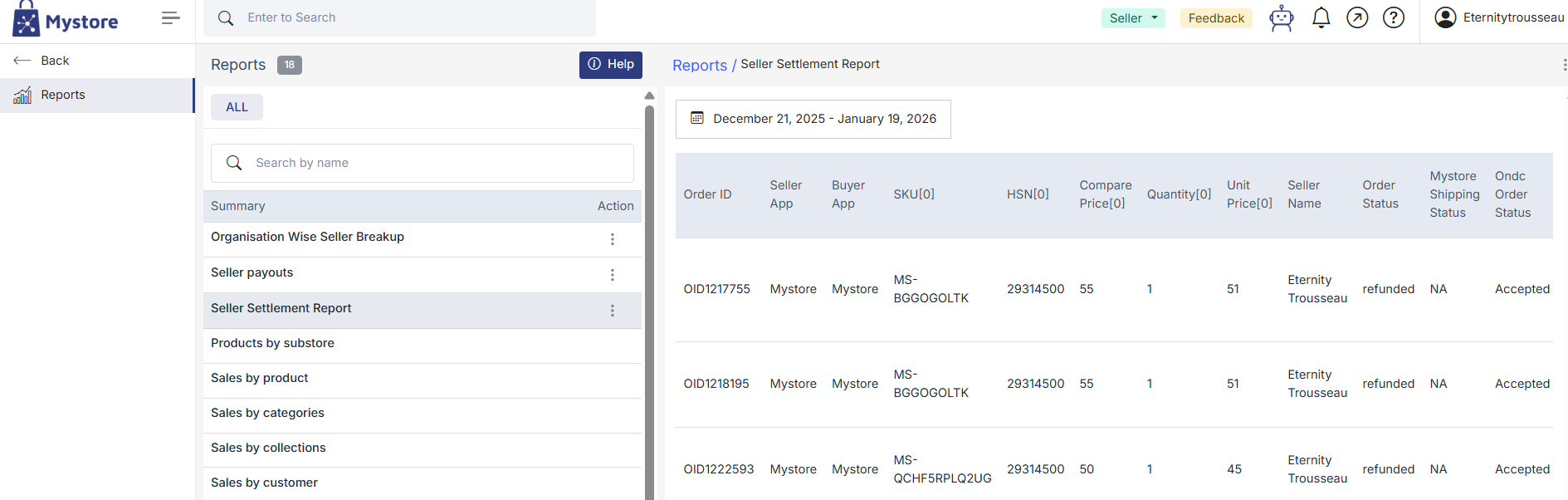
- Seller settlement report
- Each report title includes an Action (⋮) menu to view, download, or check logs.
Search Reports
Use the Search by name bar at the top of the list to quickly locate a specific report.Simply type part or all of the report name to filter the results.
Reports List
| Column | Description |
|---|---|
| Summary | Displays the report name (e.g., Seller settlement report). |
| Action (⋮) | Opens options such as View, Download CSV, Download Excel, and View Logs. |
Actions Menu (⋮)
Click the three-dot (⋮) menu beside any report to perform the following actions:
| Option | Description |
|---|---|
| View | Opens the detailed report view. |
| Download CSV | Downloads the report in .csv format. |
| Download Excel | Downloads the report in .xlsx format. |
Report Details View
When you select a report (for example, Seller Settlement Report), detailed data appears on the right panel like example: Order-level details,Fees & deductions,Returns & refunds,Taxes,Net settlement etc , on the right panel
Date Range Filter
You can filter report data using predefined or custom date ranges by clicking on calender icon:
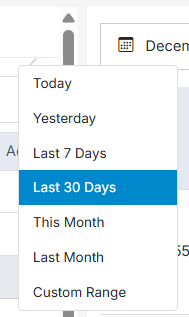
- Today
- Yesterday
- Last 7 days
- Last 30 days
- This Month
- Last Month
- Custom Range