


 Contact Us
 Appliances
 Agri Inputs
 Auto Components & Accessories
 Beauty & Personal Care
 Electronics
 Fashion
 Grocery
 Gift Cards
 Home & kitchen
 Health & Wellness
 Vehicles & Automotives
 Books & Stationary
 Pet Care
 Toys & Games
Magento Channel Integration
This comprehensive step-by-step tutorial will walk you through the entire one time product synchronization process between Magento and Mystore admin panels.
Integration With Magento
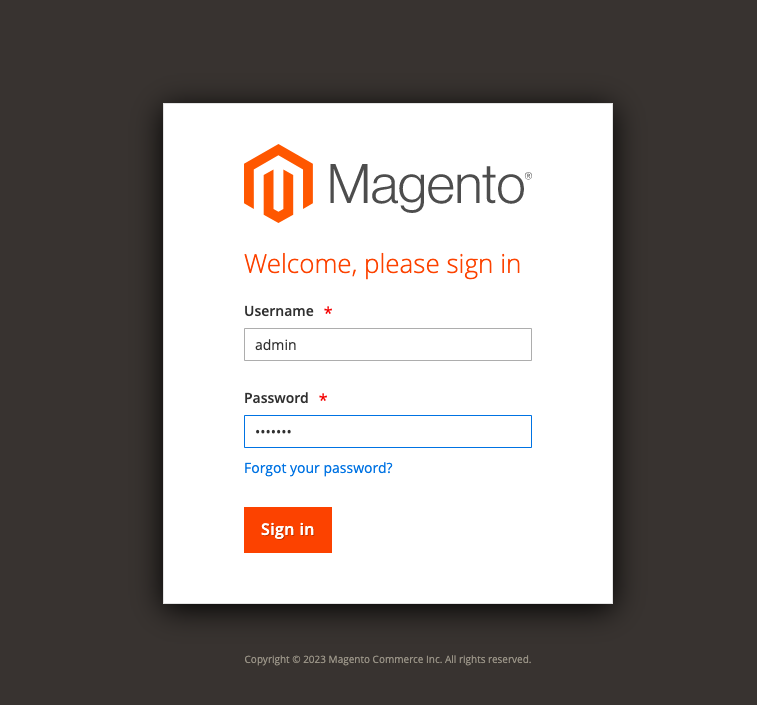
Step 1. Log in to your Magento admin account.
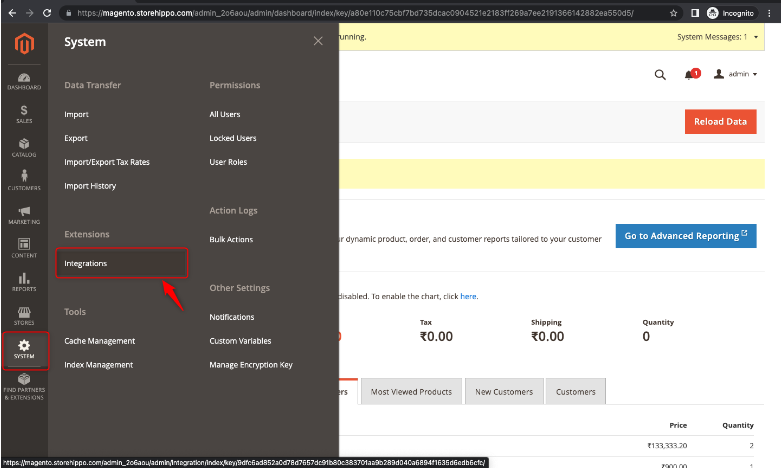
Step 2. On the left dashboard, go to System << Integrations as shown
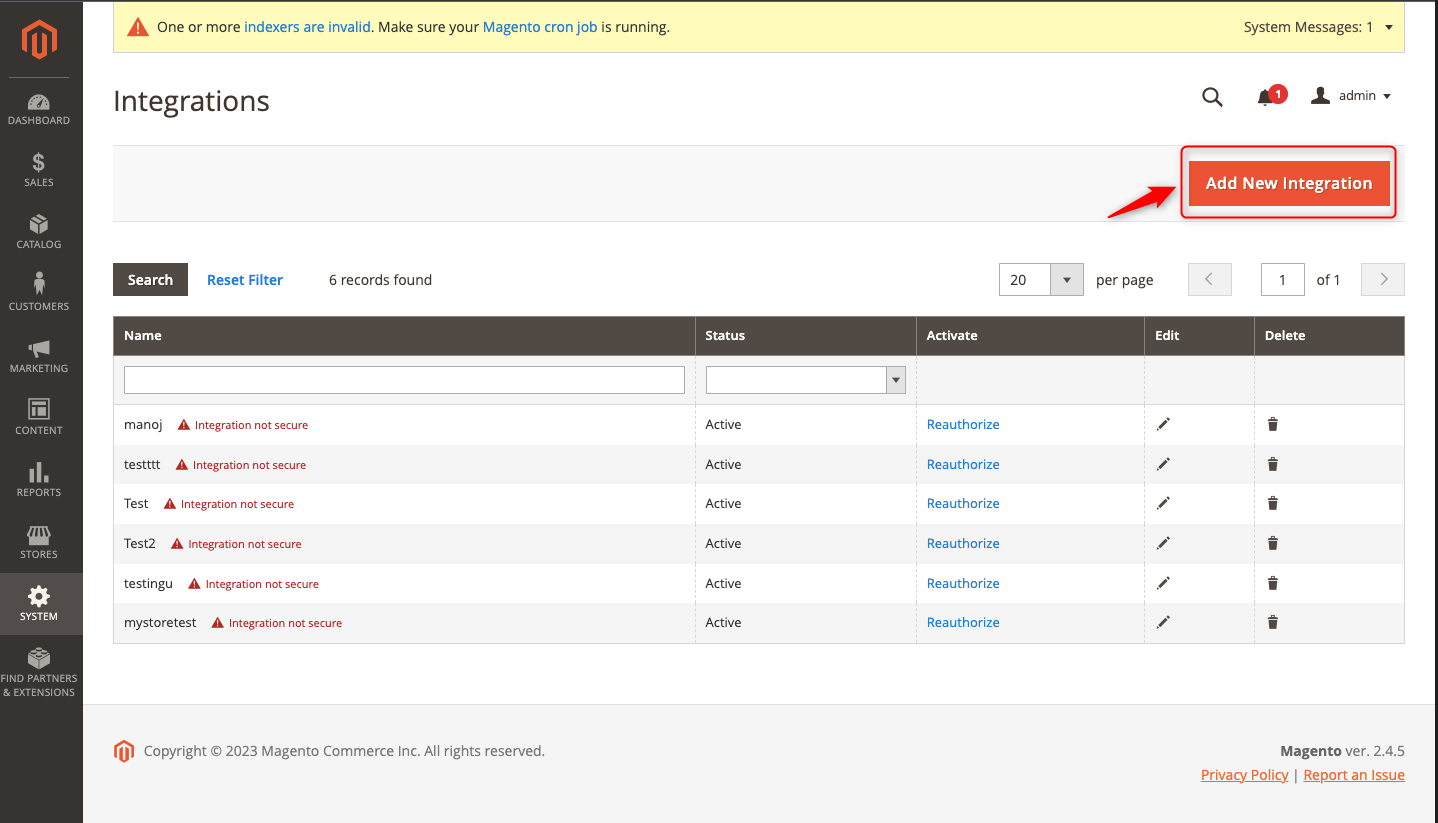
Step 3. Press the “Add New Integration” button.
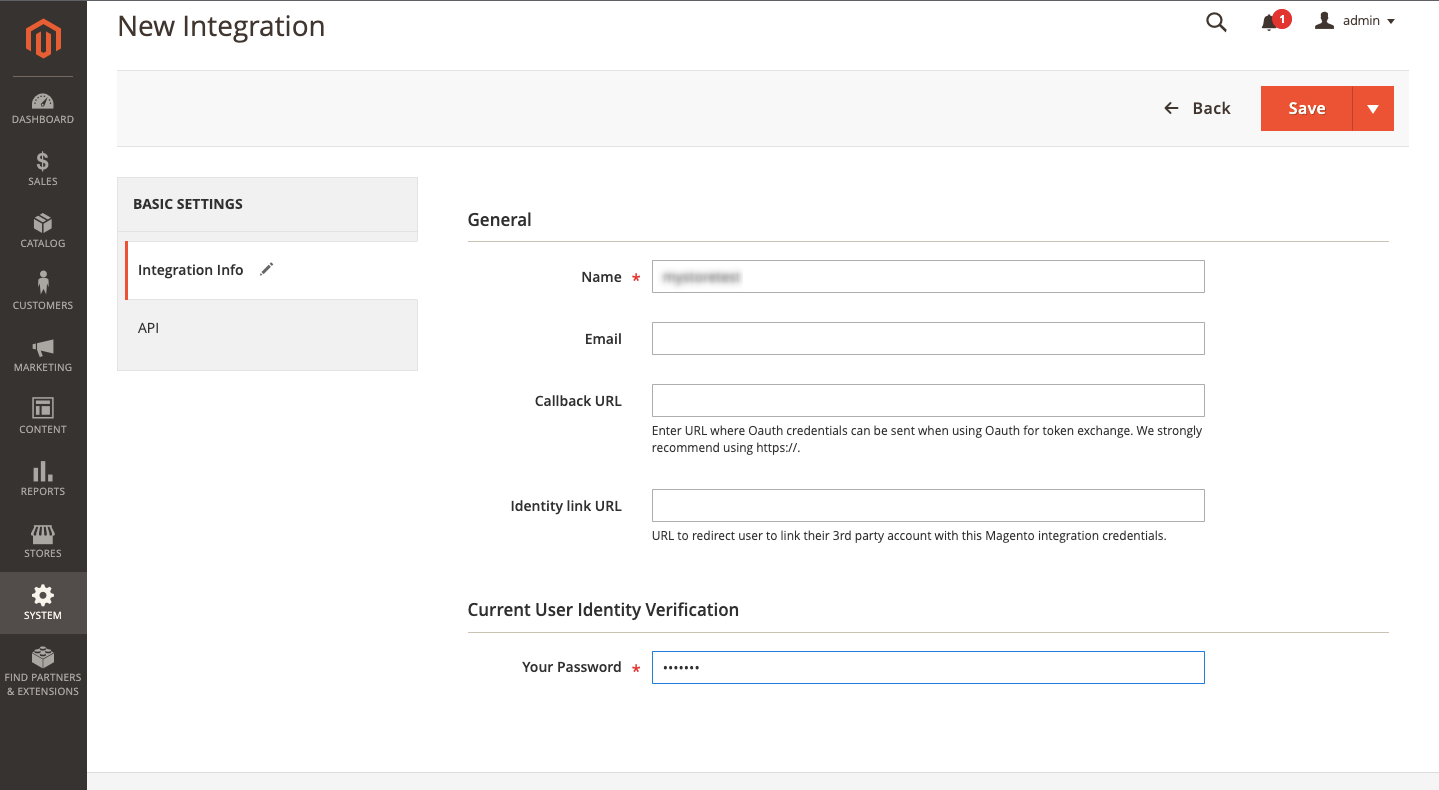
Step 4. In the Integration Info section, fill in the mandatory fields (i.e. “name” and “password”) for user verification.
Step 5. Next, click on API
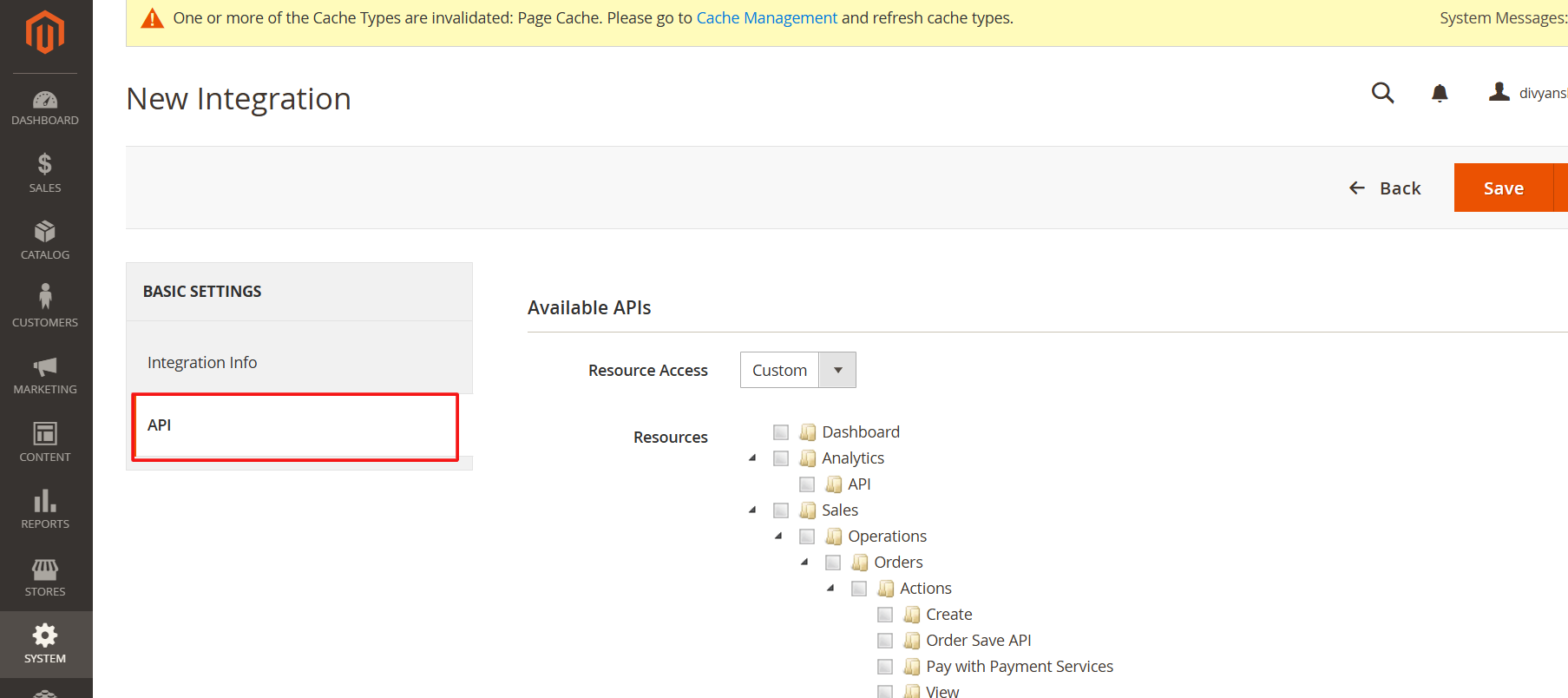
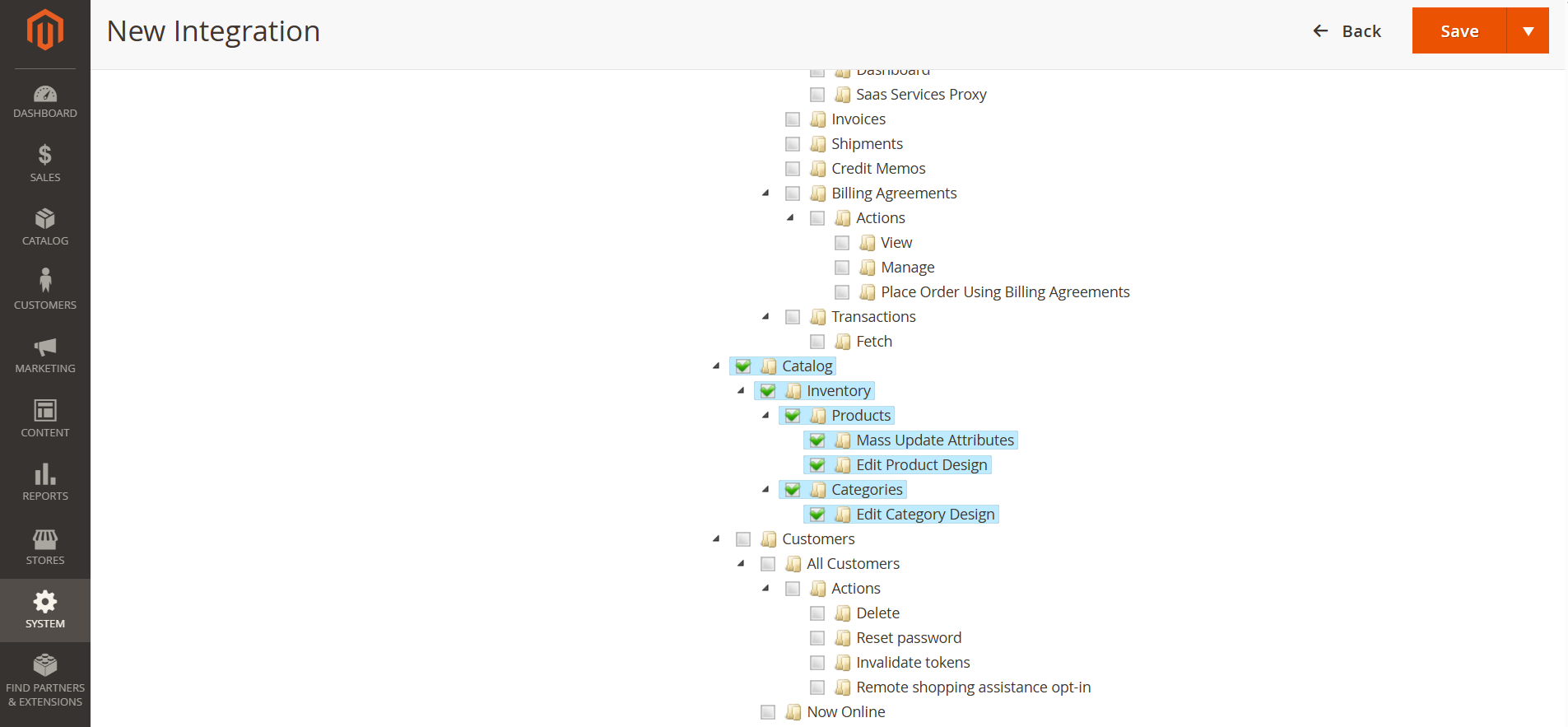
Step 6: Select catalog, check on the mentioned sections.
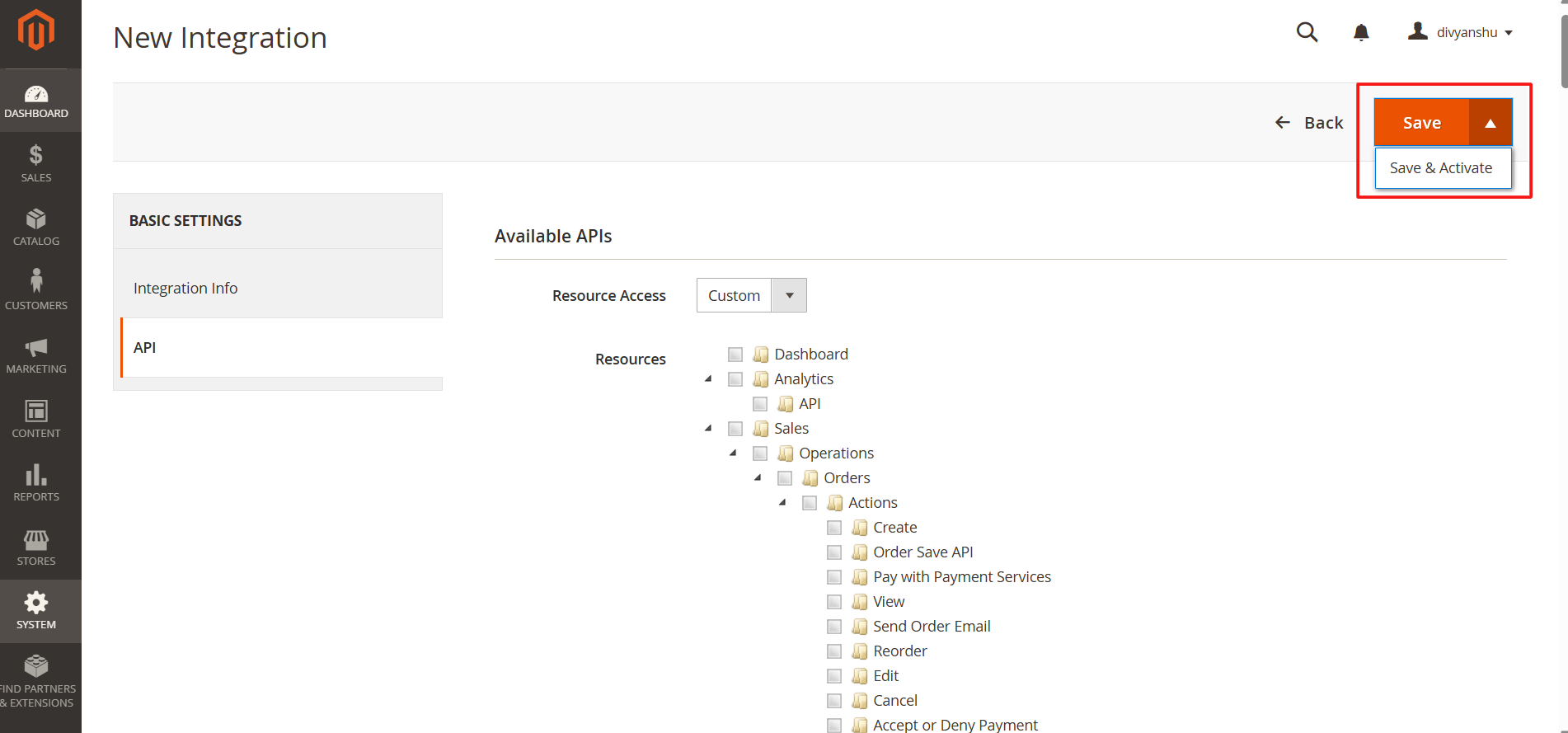
Step 7: Then click on Save and active.
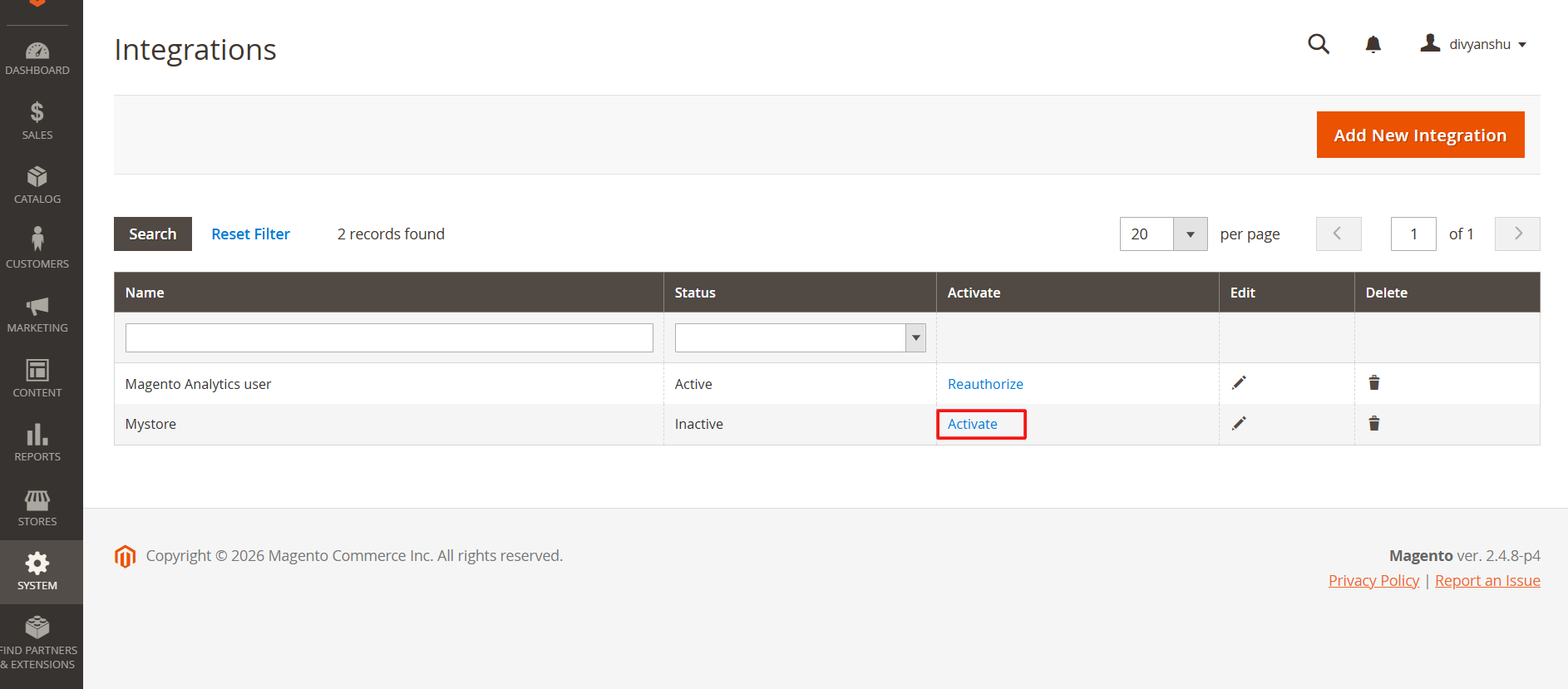
Step 8. Once saved, go to Systems>integration and click on activate.
Step 9. Finally, to retrieve integration tokens, Click on “Allow”.
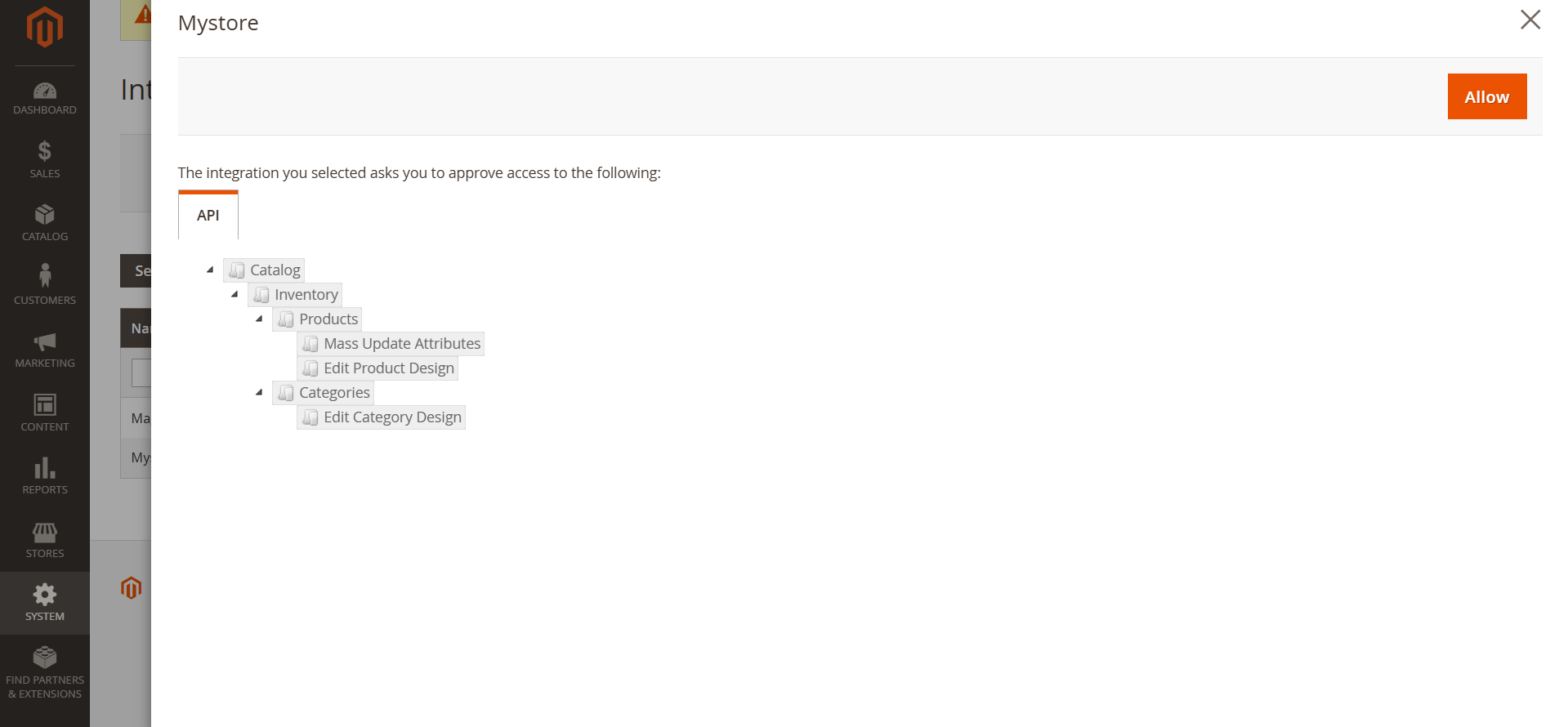
Step 10. The user can now retrieve integration tokens (“Consumer Key”, “Consumer Secret”, “Access Token”, Access Secret Token”).
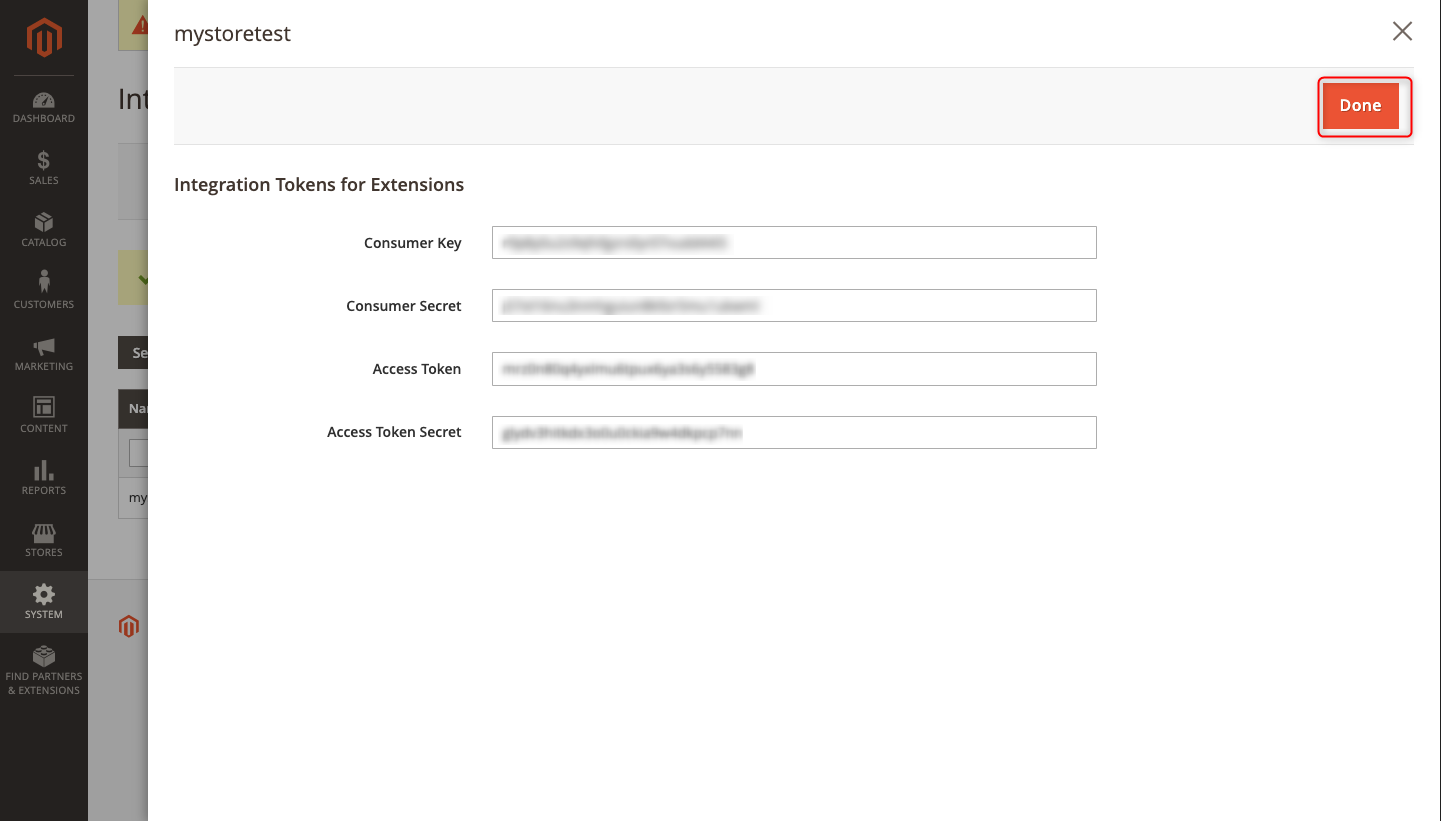
Note: To ensure your store security, we recommend never publicly sharing your API credentials, especially the “Consumer Secret” and “Access Token Secret” keys.
Integrating Magento Store With Mystore Seller Account
The next part of channel integration is to be done in your Mystore admin panel. Here’s a step-by-step guide:
Step 1. Log in to your Mystore admin panel.
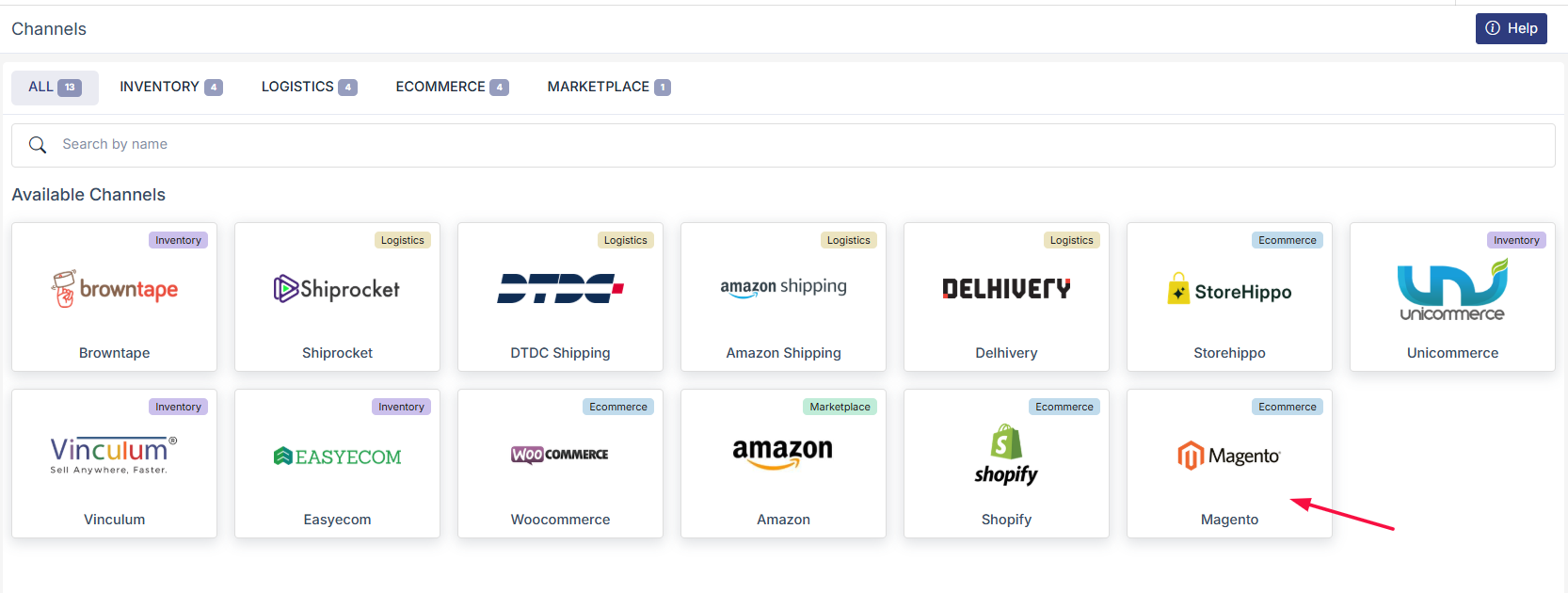
Step 2. On the left dashboard, go to Channels << Magento from the available channels (as shown).
Step 3. Fill in the API credentials and channel name saved from the Magento panel in the previous steps. Then, copy-paste the Magento store URL.
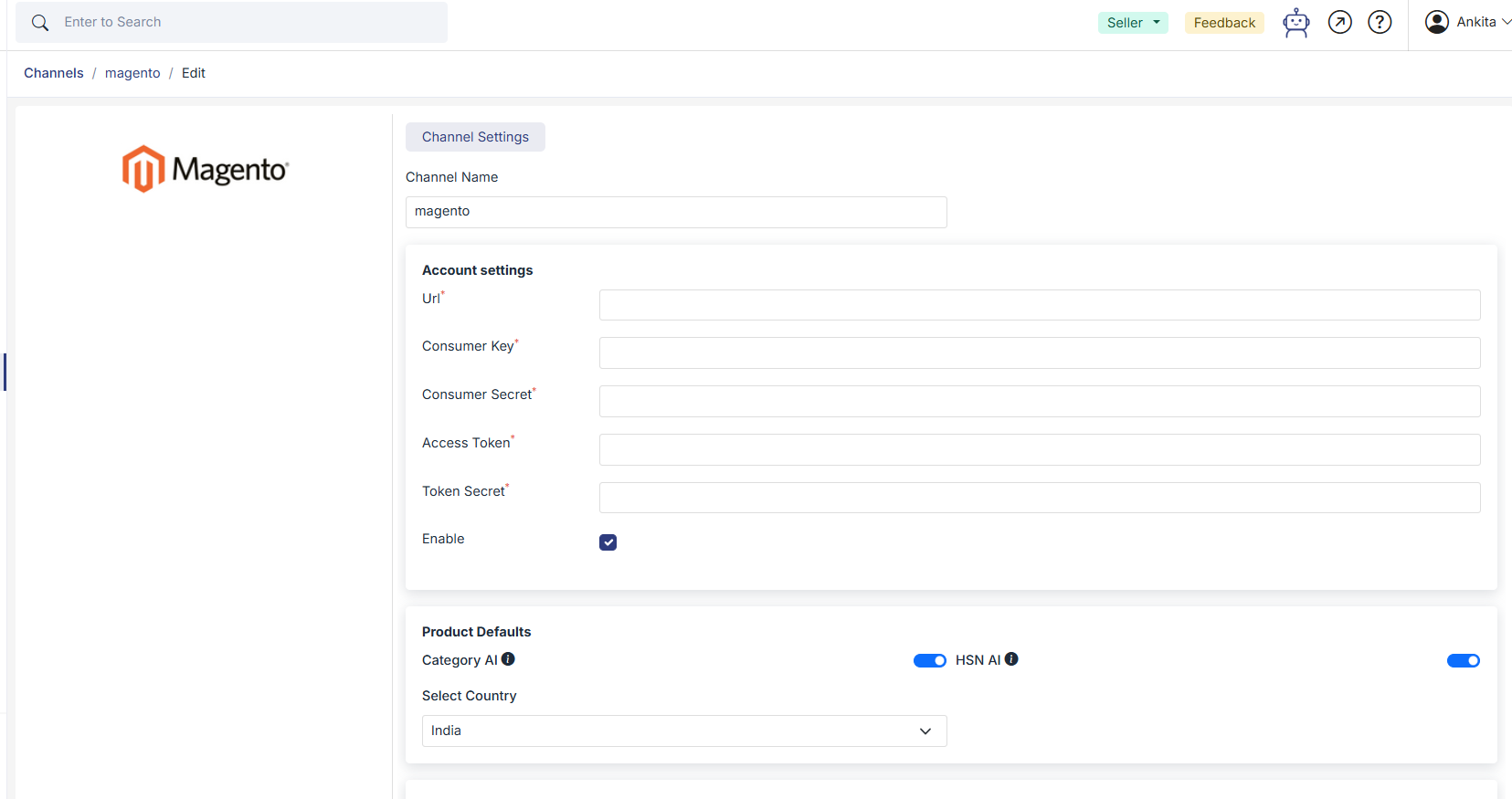
Step 4. Enable the “Import Products” option.
Step 5. Finally, click on “Add Channel”.
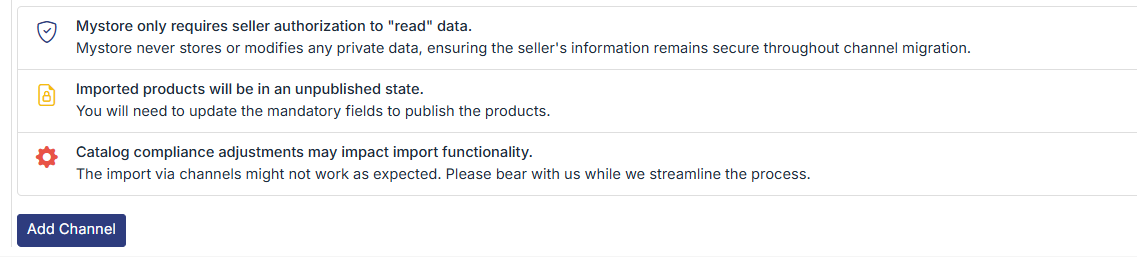
# Note: Channel Stats and Channel Records can be used to indicate that your Magento+Mystore channels have been successfully configured.
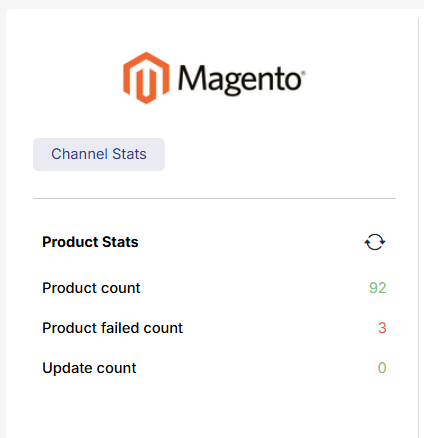
Channel Stats: You can check your channel stats and channel records which includes product count, product failed count and update count on your admin dashboard as shown:
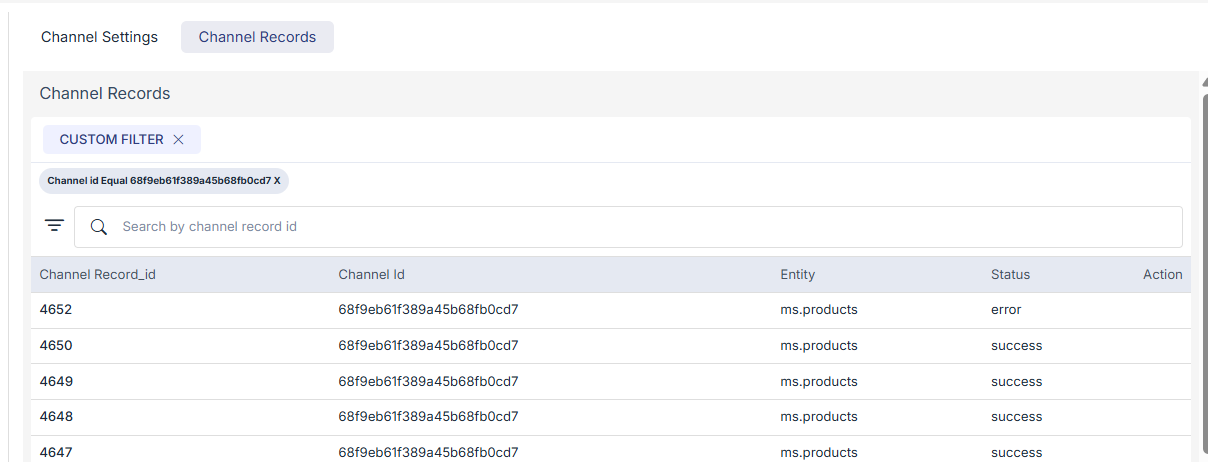
Channel Records: Channel Records store the reference details of entities synced from Magento into Mystore.
Finally, to ensure that all your entire catalogue has successfully migrated, click on “Products” on the admin dashboard (as shown).
Here is a video link visually demonstrating the entire one-time product migration process.