


 Contact Us
 Appliances
 Agri Inputs
 Auto Components & Accessories
 Beauty & Personal Care
 Electronics
 Fashion
 Grocery
 Gift Cards
 Home & kitchen
 Health & Wellness
 Vehicles & Automotives
 Books & Stationary
 Pet Care
 Toys & Games
WooCommerce Channel Integration
Sellers are often unable to reach their optimum selling potential due to the WordPress-centric structure and higher operational costs associated with the platform. With WooCommerce Channel Integration via Mystore, you can seamlessly connect your existing e-store and upload your entire product catalogue to Mystore.
Additionally, Mystore operates with no upfront costs or subscription fees, making it a cost-effective solution for scaling your online business.
Here, we show you how to link your WooCommerce account to Mystore for one time product sync. Vendors may quickly and easily link their existing WooCommerce catalogue with Mystore using this step-by-step tutorial!
How to Integrate WooCommerce with Mystore
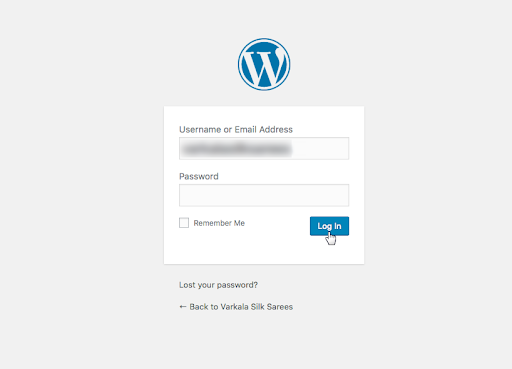
Step 1. Login at your Woocommerce Admin panel.
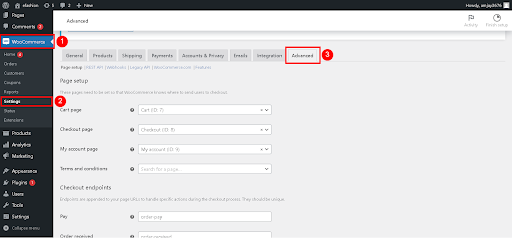
Step 2. Go to Woocommerce >> Settings >> Advanced from the left of the admin panel (as shown)
Step 3. Click on the tab ”Rest API“. Then, select the “Add Key“ option as shown. Key Details include Channel Description, User ID, and Access Permission.
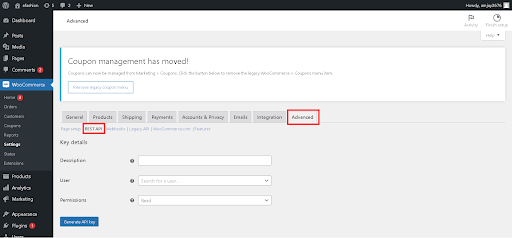
Important Note: You have to select “Read”, “Write”, or “Read and Write” permissions based on preferences.
Step 4. After filling in all the relevant information, click on the “Generate API Key“ button.
Step 5. Copy all the credentials generated to configure them later with your Mystore account. The configuration process is explained after step 7.
Retrieve “Consumer Secret” and “Consumer Key” as shown:
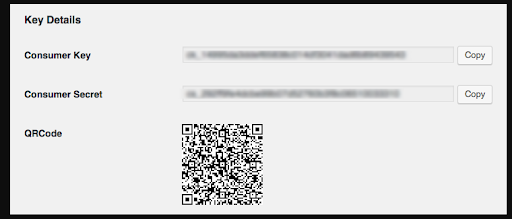
Important Note: The “Consumer Secret” key may only be viewed once. Hence, save your ‘Consumer Key’ and ‘Consumer Secret’ credentials before leaving the page. Also, be sure NEVER to share your API credentials publicly.
WooCommerce Product Migration to Mystore
Sellers can migrate their entire product catalogue from WooCommerce to their Mystore seller account in just a few clicks. The seamless process can enable users to leverage Mystore’s advanced, feature-rich dashboard to make their selling journey quick and hassle-free. Here’s how the channel integration works:
Step 1. Log in to your Mystore admin account.
Step 2. Go to Channels.
Step 3. Click on the “Woocommerce” channel as shown.
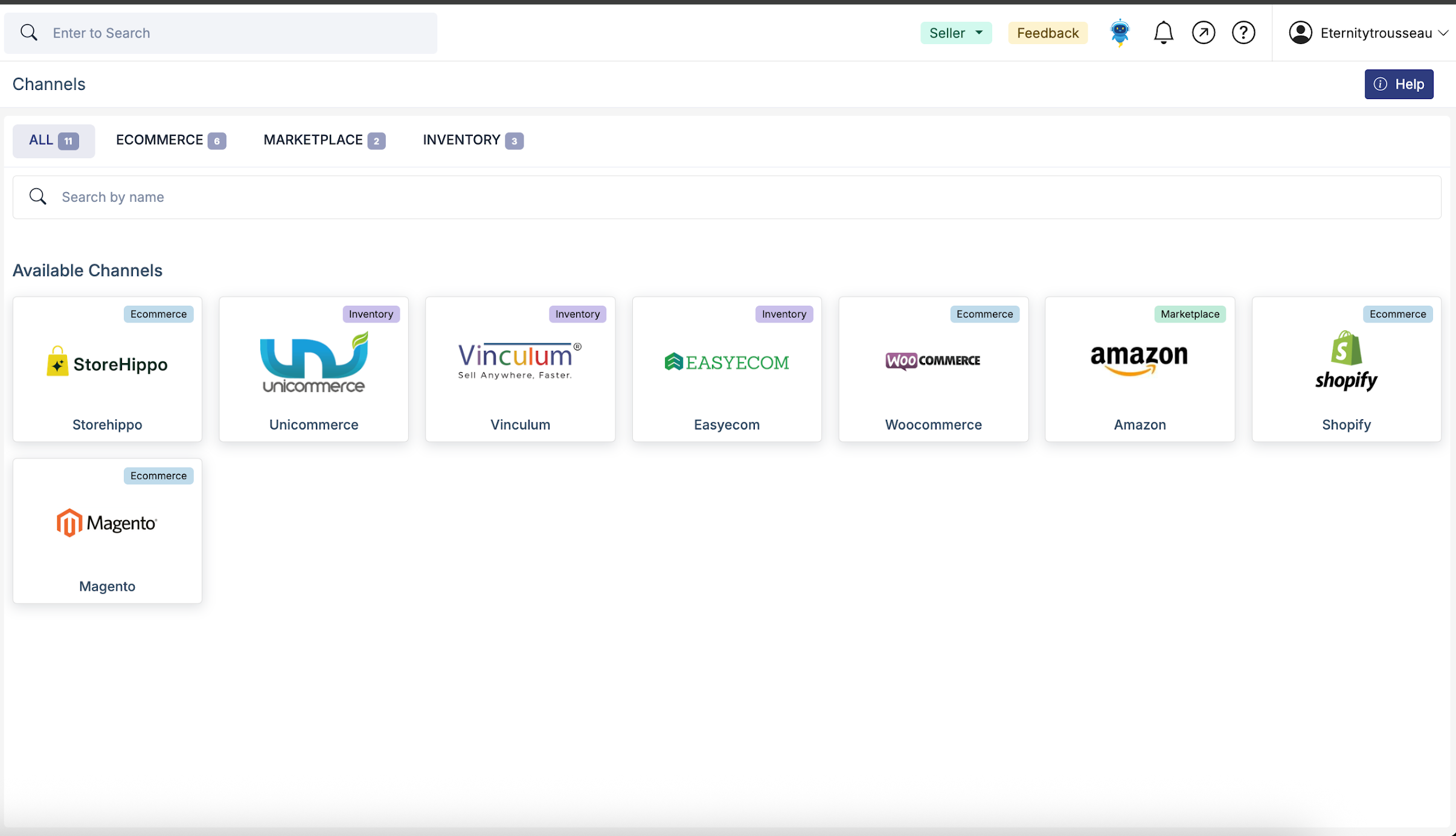
Step 4. Then, you will be directed to the “Channel Settings” section, asking you to enter the same credentials as saved from the WooCommerce panel.
Step 5. Fill in the required parameters “Channel Name”, “user ID”, “consumer key, and “Consumer Secret”, as shown below.
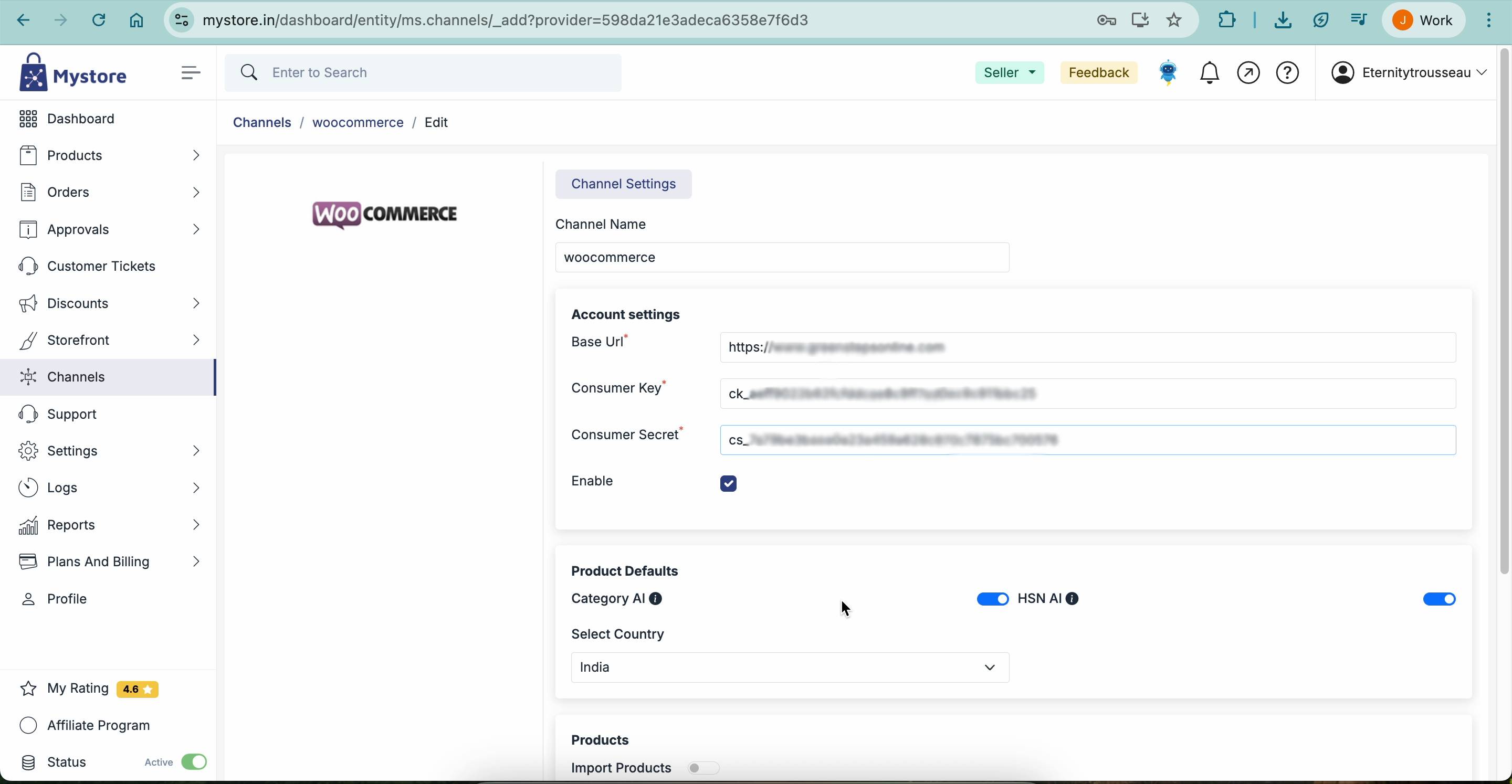
Step 6. Switch on the “Import Products” option. Then, click on the “Add Channel” button.
.jpg)
Note: Your WooCommerce channel is now synced with your Mystore admin panel.
Important Note: You can also review your “Channel's Stats” and “Channel Records” to ensure that your WooCommerce store has been successfully configured on Mystore.
a) “Channel Stats” can be accessed on your Mystore admin panel, as illustrated here. The entry confirms that the entire catalogue on WooCommerce has been successfully migrated to the Mystore dashboard.

Channel Stats
b) "Channel Records," which includes each entry's migration status along with their unique “Channel ID”. After an entry is made, the information is processed and stored in the “Channel Records” section.

Channel Records
Step 7. To confirm that all products have been successfully migrated from WooCommerce to Mystore, go to Products > Pending Approval. All products should now be categorically listed on the page.

Your WooCommerce Channel has been successfully configured with Mystore.
Important Note: After your WooCoomerce channel is synced with Mystore, you can manage your entire product catalogue across multiple channels from a single admin panel. Mystore provides a fully secure integration with all Woocommerce websites.