


 Contact Us
 Appliances
 Agri Inputs
 Auto Components & Accessories
 Beauty & Personal Care
 Electronics
 Fashion
 Grocery
 Gift Cards
 Home & kitchen
 Health & Wellness
 Vehicles & Automotives
 Books & Stationary
 Pet Care
 Toys & Games
Seller Registration & KYC
To start selling on ONDC network through Mystore, you need to register as a seller. The registration on Mystore is absolutely free of cost. A seller can sell products on Mystore with GSTIN and without GSTIN. However , registering without GST restricts you to only sell within your registered state. Follow these steps carefully to complete your registration.
Seller Registration
Registration Process

- Go to the Mystore Website.
- Click on the ‘Sell on ONDC’ button located at the top right corner of the homepage.
- From the menu that appears, click on ‘Register as a Seller’.

Verify Your Mobile Number
- Enter your mobile phone number in the provided field.
- Click on the ‘Send OTP’ button.
- You will receive a 4-digit OTP (One-Time Password) on your phone.
- Enter the received OTP in the input box to verify your number.
Provide Basic Account Information
- Enter your email address.
- Choose a password for your account.
- Make sure your password is strong and easy for you to remember, but hard for others to guess.
- You now have two options depending on whether or not you have a GSTIN.
For Seller with a GSTIN (to sell accross India)
It is mandatory for all sellers of goods and services to be registered for GST who wants to sell their products PAN India has to submit GST details for registration.

- Select the ‘GST’ option.
- Enter your GSTIN (Goods and Services Tax Identification Number).
- Click on the ‘Sign Up’ button to complete your registration.
Once submitted, your account will be created and you’ll be able to proceed to the next steps inside the seller portal.
Please note: Seller cannot register multiple brands with same GST. each brand should have their individual GST through which they can register with. A seller however can certainly onboard multiple brands and manage them centrally using the seller manager model.
For Non-GSTIN sellers (For Intra-State Sellers)
A seller can register on Mystore ONDC network without a GST Number by generating an enrollment number. You can refer to the following help section for the steps on how to generate an enrollment number.

If you don’t have a GSTIN, you can still register to sell products within your own state. Here’s how:
- Select the ‘Non-GST’ option.
- Enter the Business name
- Enter the Enrollment number (Refer this guide to Generate Enrollment number)
- Verify your identity using your Aadhaar number:
- Enter your 12-digit Aadhaar number.
- Click on ‘Verify’ to receive an OTP on the phone number linked to your Aadhaar.
- Enter the OTP
- Click on 'Verify OTP' button to complete Aadhaar verification.
Once verified, click on the ‘Sign Up’ button.
Your seller profile will now be created for intra-state selling.
Complete Your KYC
After registering as a seller, you’ll be redirected to the Onboarding Page. This page helps you complete your seller profile with required business, address, bank, and store details. Before getting started keep all the mandatory documents ready as per selected seller category for KYC process.
Follow the instructions below to complete each section.
Business Details
The business details shown here depend on whether you registered with a GSTIN or without one:

- If you entered a GSTIN during registration, your business details will be automatically fetched from the GST database. This includes:
- Business Name
- PAN Number
- Business Type
- Registered Business Address
- If you did not enter a GSTIN, the form will show limited details:
- Your Business Name and Enrollment Number will be pre-filled based on your registration input.
- You will need to manually enter your PAN number. (you can add your personal PAN if GSTIN matches.)
- Then click on 'Continue' button
If you wish to update your GSTIN, click the Edit button next to the GST field.
Once you've reviewed or filled in the necessary details:
- Click the Continue button to proceed to the next step.
Pickup Address
By default, your pickup address will be the same as your registered business address.

If you want to use a different pickup address:
- Click on the Edit button next to the pickup address.
- Click on ‘Show Map’ button.
- A map will open. Use the pin-drop feature to mark your correct pickup location.
- Click the Confirm button once you've placed the pin.
When you're done click Continue.
Bank Details
Before entering your bank information, note the following:

⚠️ Note: The bank account holder name must match the business name registered under your GST (if applicable).
Steps to Fill Bank Details:
- Enter the following information:
- Account Number
- IFSC Code
- The Account Holder Name will automatically be reflected based on the entered account number and IFSC.
- Verification:
- Bank details are verified automatically, similar to GST verification.
- If verification fails, an option to Upload a Cancelled Cheque will appear.
- Use the Upload button to select and attach the file.
- After all details are entered and verified, click Continue.
This step applies to both GST-registered and non-GST businesses.
Store Information
Here, you can personalize your online store:
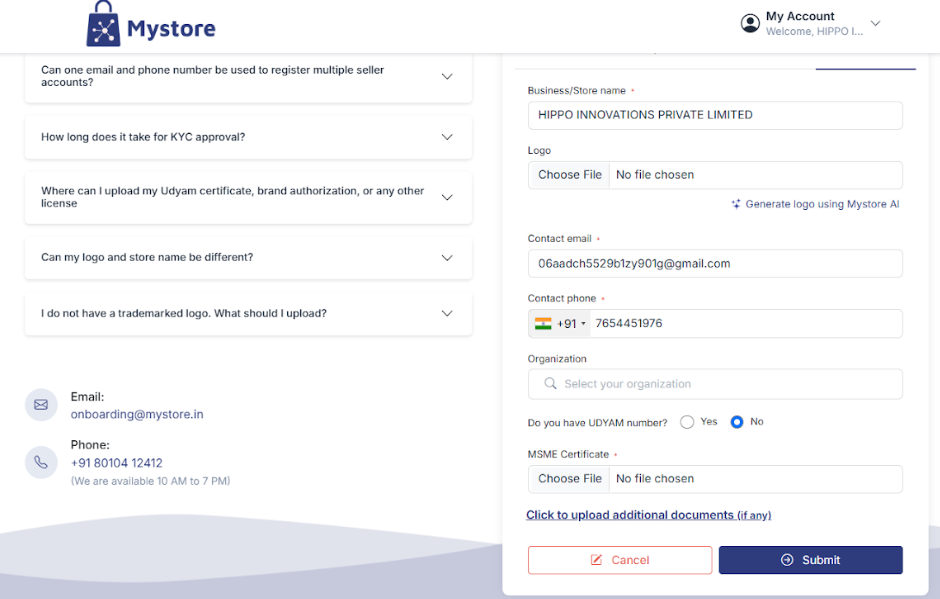
- Edit Store Name (optional)
- Upload a Store Logo
- Edit Contact Information
- Update your contact email or phone number, if needed.
- Select Organization (if applicable)
- Choose from the listed organizations if you belong to any.
- Check on do you have UDYAM number if you the UDYAM number. Refer to Teams Portal Rgistration to know more deails about UDYAM registration.
Upload Supporting Documents (If Required)
If you need to upload any documents:
- Click on ‘Upload Documents’.
- Select the Document Type from the dropdown (e.g., SHG Certificate).
- Click on ‘Choose File’ to upload the document from your device.
- Click on 'Add' Button
- Once selected, click ‘Save Document’.
You can repeat this step to upload multiple documents.
When everything is complete:
- Click on the Submit button.
Confirmation
After submission:
- A message will appear: "Your KYC has been submitted successfully. It will be reviewed within 1–2 business days. You will be notified once it is approved."
- During this time, you can still edit your details if needed.
Note: It usually takes 2-3 business days to go live on Mystore.