

 Appliances
 Agri Inputs
 Auto Components & Accessories
 Beauty & Personal Care
 Electronics
 Fashion
 Grocery
 Gift Cards
 Home & kitchen
 Health & Wellness
 Vehicles & Automotives
 Books & Stationary
 Pet Care
 Toys & Games
 Contact Us
Domains
A domain is the website address of your online store. The Domain section allows sellers to connect their existing D2C website/domain with Mystore, enabling seamless order management, inventory sync, and tracking from a single dashboard. By connecting a domain, sellers can provide a branded shopping experience for their customers, improve SEO, and ensure a seamless browsing journey.
Setting Up Your Domain
If you purchased your domain from a third-party provider, you need to point it to Mystore so your website becomes live. The exact steps may differ depending on the domain provider.
DNS Configuration
- Add an A record pointing to 35.190.95.30, i.e.,
host = @
value = 35.190.95.30
This will automatically redirect the non-www domain to the www version. - Add a CNAME record pointing to stores.mystore.in, i.e.,
host = www
value =stores.mystore.in
Guides for Popular Domain Providers
You can follow step-by-step guides for:
- Setting up domain on GoDaddy
Steps to Add a Domain
Go to Storefront > Domains.
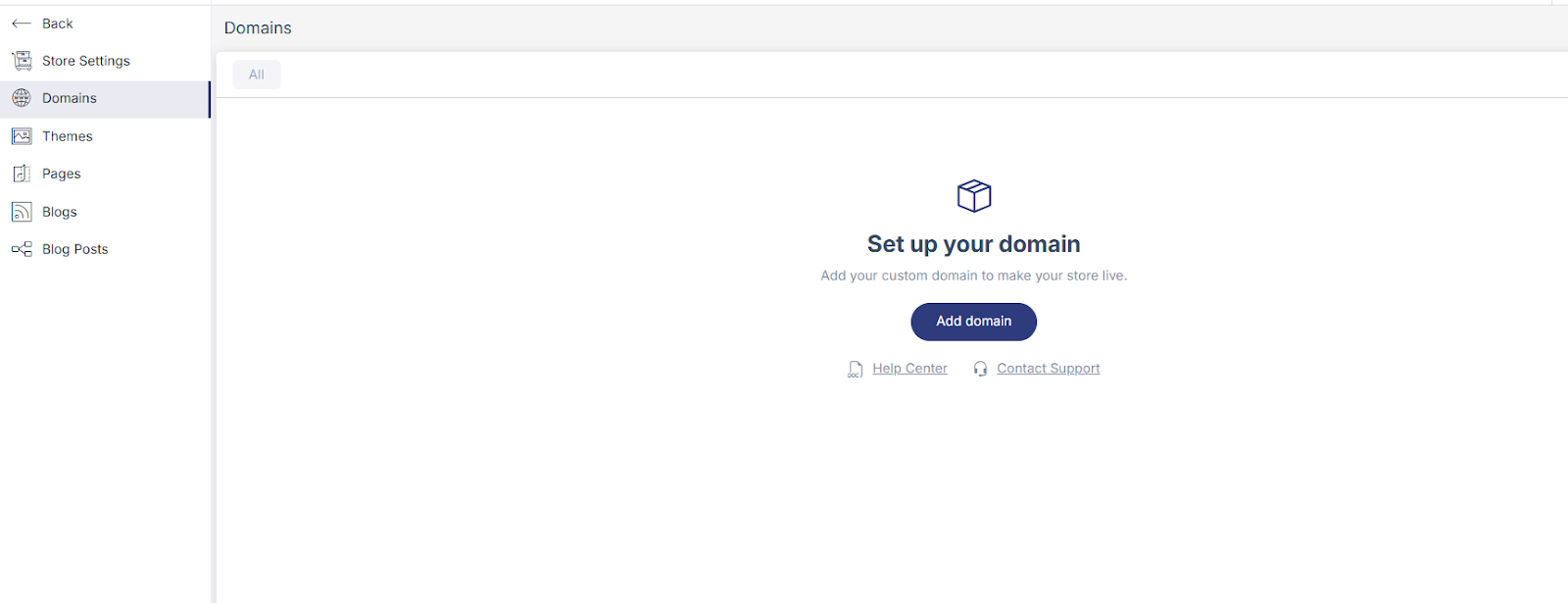
- To add the domain in Mystore, click on Add domain. Clicking the button will open a form asking for the domain name.
- Fill in the required fields:
- Domain: Enter the domain you want to use (e.g., yourstore.com).
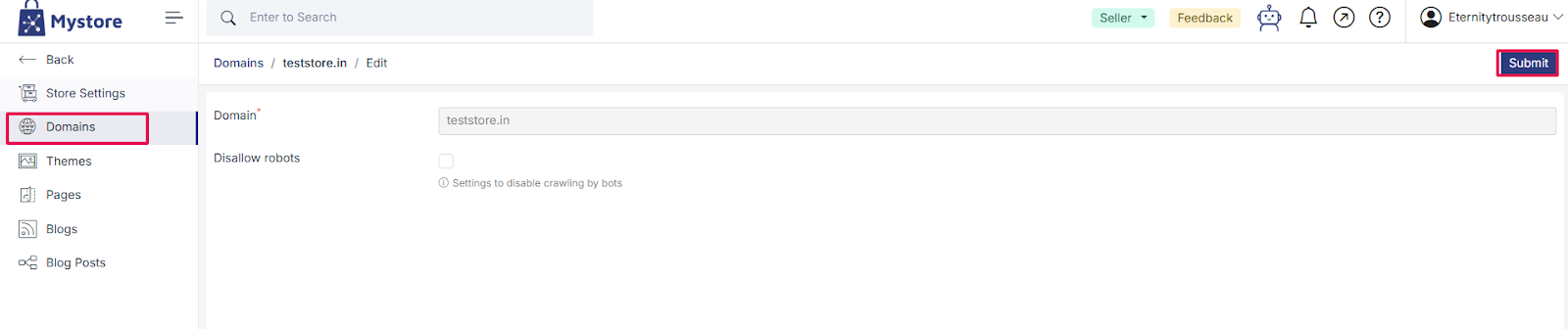
Click Submit to save.
Managing Your Domain
- An action menu (three dots) where you can:
- Edit the domain
- delete
- Troubleshoot the domain
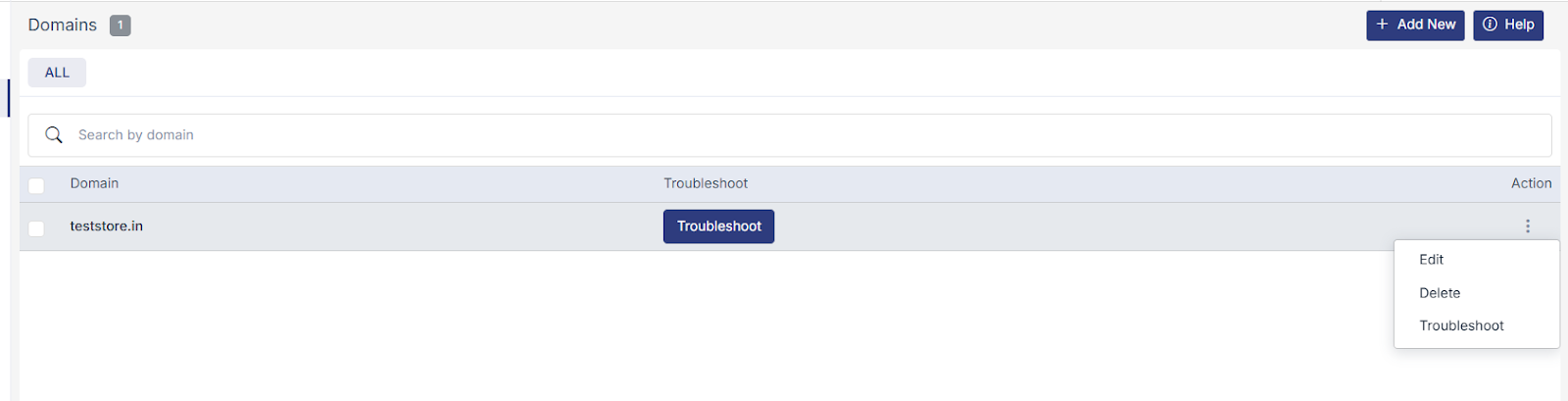
- The troubleshoot tool helps you to get details of your domain as well as to debug the issue with DNS configuration in one click.
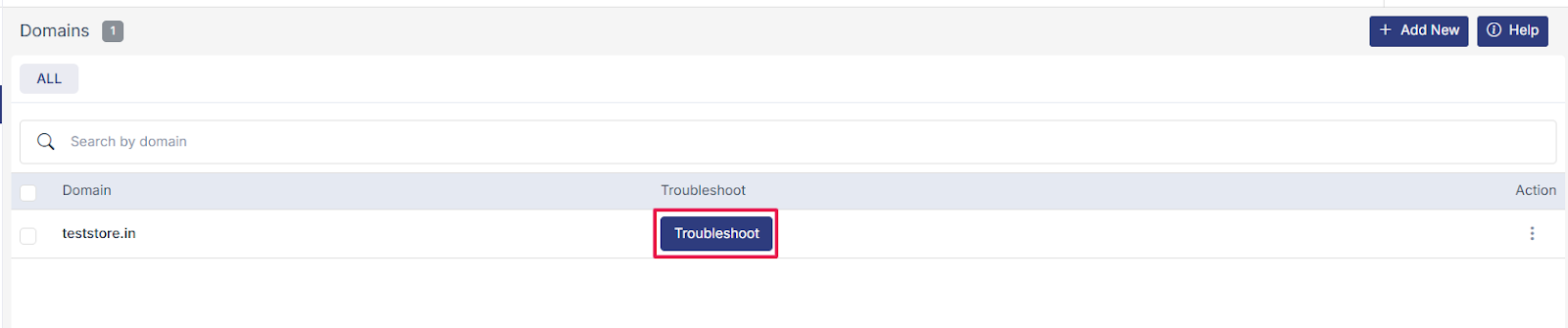
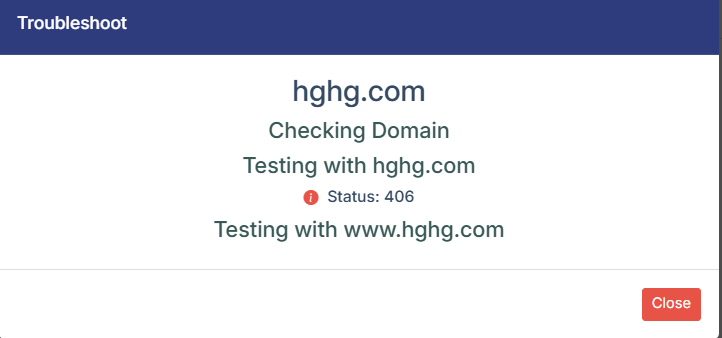
To troubleshoot a domain, you just need to click on the Troubleshoot button in the domain section. Within seconds, it will give you all the details of your domain such as domain expiration date, domain registrar, A record, CNAME, etc.
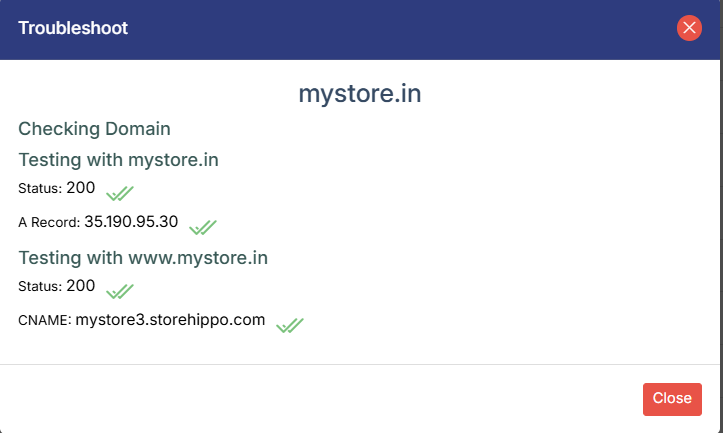
Error in Troubleshooting
If there is an issue in DNS configuration, it will show you a warning symbol. To reconfigure the DNS record, you need to click on the information symbol, which will redirect you to the Mystore help center.